
Silver Bank
The Silver Bank is your guild's accounting system for silver — every member has a balance (per Albion character), staff can add / remove silver in bulk, members can request withdrawals, and the whole thing is auditable. Open it from the sidebar under MANAGEMENT → Silver Bank.
Silver Bank is one of the opt-in systems — turn it on in Settings → Guild Systems first. Once on, it backs three other features: silver-mode regear payouts (Silver mode — payout), Member Regear Report silver totals, and Daily Regears silver totals.
Permissions
- View Banks, Armory & Item Price — see balances, transactions, withdrawal queue.
- Manage Banks, Armory & Item Price — add / remove silver, approve withdrawals, paste chest logs, change settings.
The 5 tabs
| Tab | What's there |
|---|---|
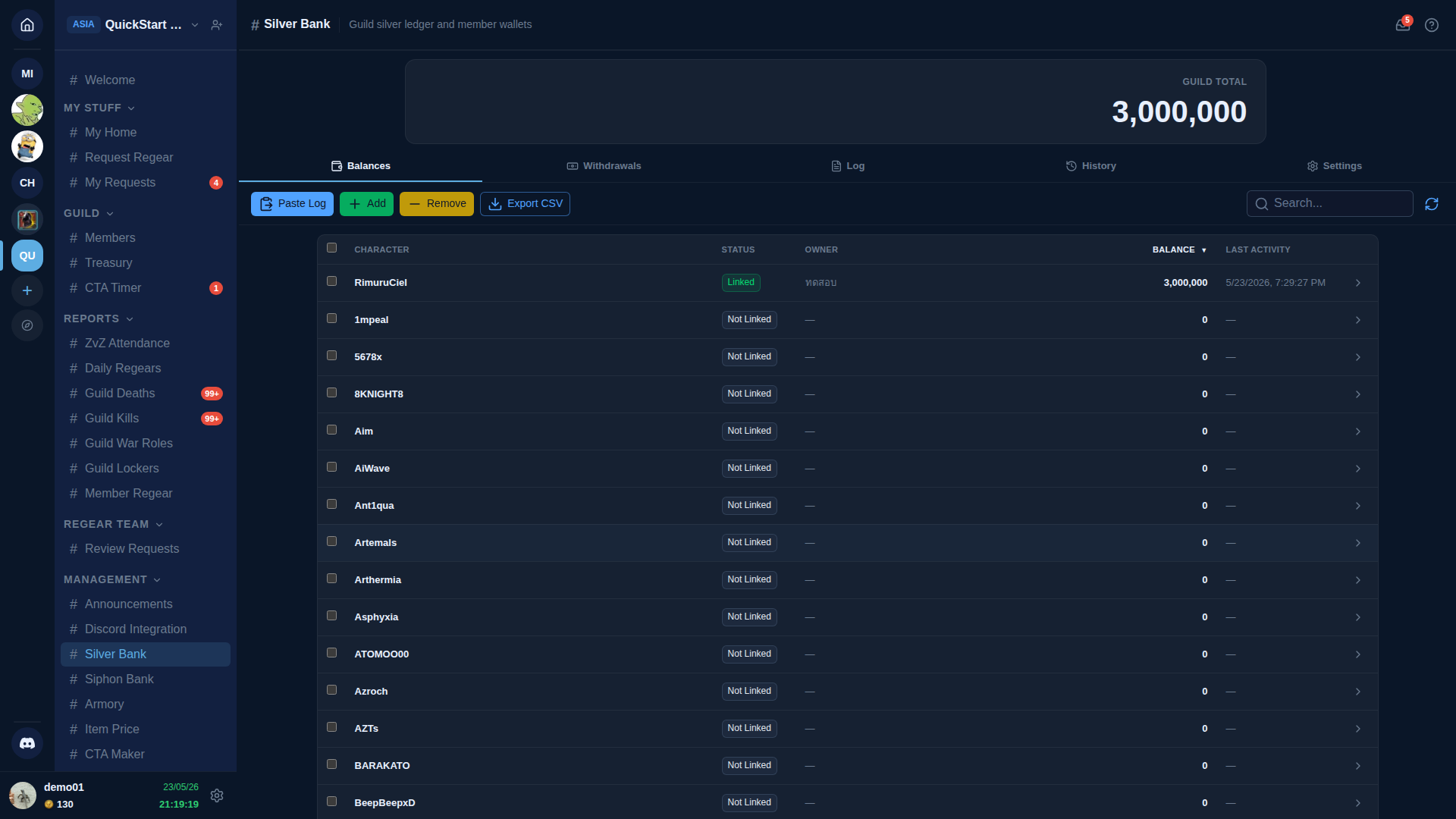
| Balances | One row per character with a recorded balance. Shows linked-status, linked owner (when known), current balance, last activity timestamp. Toolbar: Paste Log, Add, Remove, Export CSV. |
| Withdrawals | Member-initiated withdrawal requests waiting for staff to fulfil (in-game silver transfer). Filterable by status. |
| Log | Raw silver in/out lines from chest pastes — staff marks each line Apply (commit to the right character) or Disable (ignore). |
| History | The finished ledger of every committed credit / debit, including regear payouts. The accounting source-of-truth. |
| Settings | Bank policy + which characters are visible, withdrawal cap per role, etc. |
Balances tab
The default landing. Every Albion character the bank knows about gets a row. Rows are sorted by balance (highest first by default; click the column header to flip).
Per-row anatomy:
- Character — Albion character name.
- Status — Linked (a member of this guild claims this character via Members → 🔗 Link) or Not Linked (the bank knows about the character but no one's claimed it — withdrawals from this row are blocked until someone links).
- Owner — display name of the AO Master account that linked the character. Empty for unlinked characters.
- Balance — the current silver balance.
- Last activity — timestamp of the most recent transaction on this character.
Per-row actions (click the chevron at the right):
- Adjust balance — Add / Remove silver with a reason.
- View history — drill into this character's per-row transaction list.
- Request withdrawal (member only, when linked) — open the withdrawal form.
Withdrawals tab
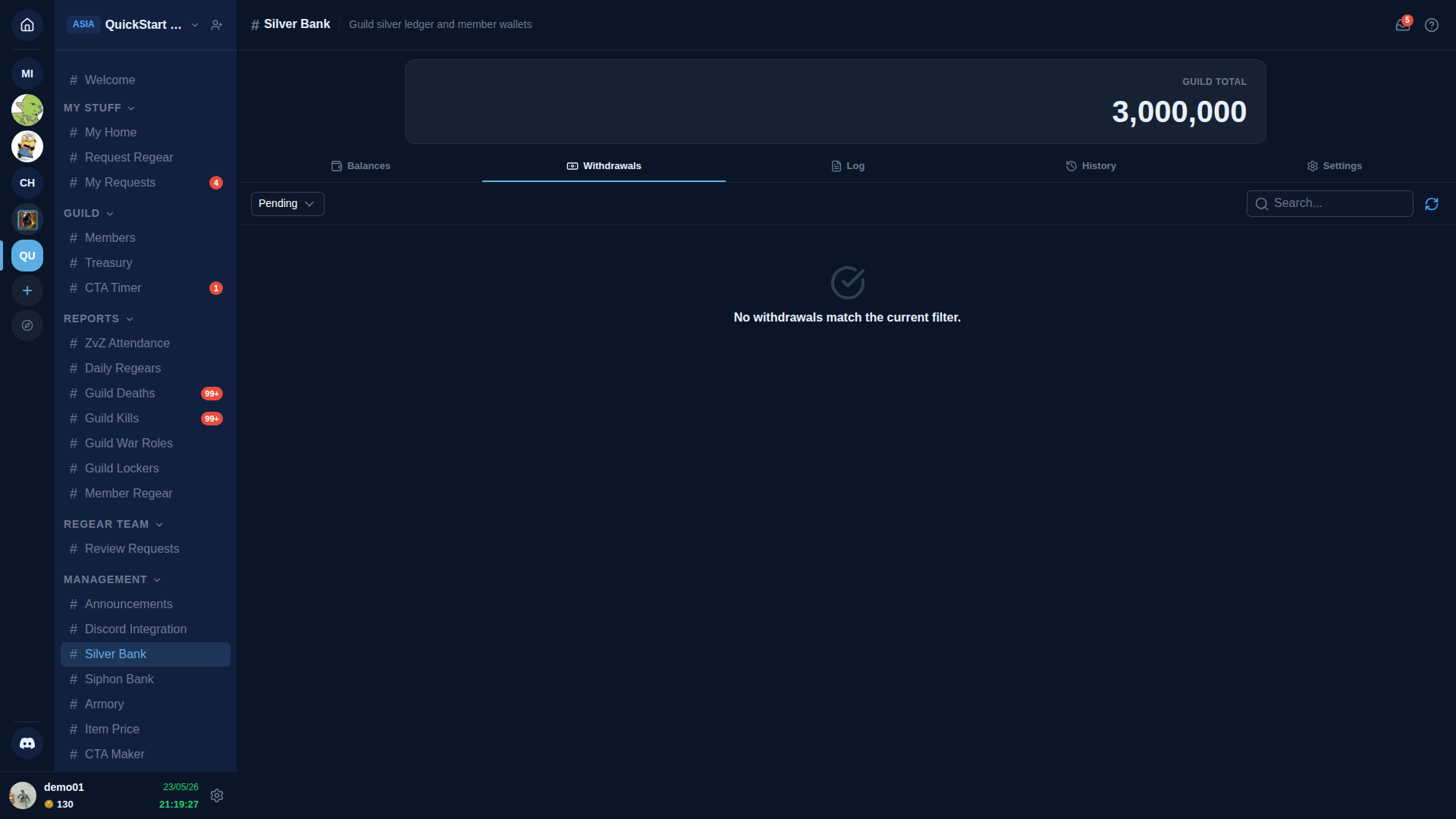
The withdrawal queue is the bridge between AO Master balances and the in-game guild chest:
- Member with a linked character clicks Request withdrawal on their balance row (or from
#My Home → Silver Bank). - The request lands here as Pending.
- Staff transfers the silver in-game to the member's character.
- Staff marks the row Fulfilled in AO Master, which debits the balance.
- Member sees the silver appear in-game + the row moves to Fulfilled in their My Home view.
The filter dropdown defaults to Pending (the work queue). Switch to All to see fulfilled / rejected too.
Log tab — chest-paste workflow
The Log tab is where you import in-game chest transactions. Workflow:
- In Albion, open the guild chest, right-click → Export log. Albion writes a TSV file.
- Open it, copy the rows you want to import, paste into the Paste Log action.
- Each line shows up here as a row with character name + amount + raw reason text.
- For each row, decide:
- Apply — commit to the right character's balance (creates a History row).
- Disable — ignore (e.g. a transfer between two staff that shouldn't credit either side).
- Default filter shows Pending apply so you can work through unprocessed rows. Switch to All / Applied / Disabled for the other views.
Withdrawals from the chest log are allowed to push a balance negative
The Silver Bank is an approximation of the in-game ledger — log imports can be incomplete, very old log lines drop off, and a character's tracked balance can lag the in-game reality. So a withdraw row from the chest log Applies even if it would drop the character's tracked balance below zero. Staff is expected to reconcile by depositing whatever they hand off in-game once the missing context is known.
Member-to-member transfers still enforce the no-overdraft rule (transferred silver is real silver moving between two characters, and the bank shouldn't invent supply from thin air).
History tab
Read-only ledger of every committed transaction. Each row is one move — Add (credit) or Remove (debit) — with timestamp, character, amount, source (manual, regear payout, withdrawal fulfilment, transfer-in, transfer-out), and note.
This is where silver-mode regear payouts land (source = "regear payout"). See Silver mode — payout for details.
Filterable by type (All / Add / Remove). Searchable by actor / character.
Settings tab
Policy knobs:
- Visible characters — by default the bank tracks every character that's appeared in any pasted log. Filter to "linked characters only" to keep the Balances list focused.
- Withdrawal cap per role — pick a role + max per-withdrawal silver cap. Members trying to withdraw above the cap see an error.
- Auto-credit linked characters — when on, pasted log rows for linked characters auto-Apply without waiting for staff click.
Cross-links
- Settings → Guild Systems — where you toggle Silver Bank on / off.
- Silver mode — payout — the biggest consumer of Silver Bank.
- Members — link character — for members to claim their characters.
- #Silver Bank channel reference.