
Sign up — CTA Timer + Party Board
When a shot-caller schedules a CTA (see Plan an event with CTA Maker), it appears on #CTA Timer for every member to sign up. If the event has parties configured, you can also claim a specific slot on the Party Board so the shot-caller knows where to place you in the comp.
This page is the member-side walkthrough. For the running side (party leaders uploading roster screenshots during the event), see Run + track attendance.
Permissions
- Sign up + cancel your own sign-up: every member can do this — no special permission needed.
- Pick a slot on the Party Board: usually open to everyone. If the party (or just the slot) is locked to a war role you don't have, the Sign up button stays disabled with a hint.
1. Find the event on #CTA Timer
#CTA Timer lives under MY STUFF → CTA Timer in the sidebar — always visible when your guild has the ZvZ System turned on.
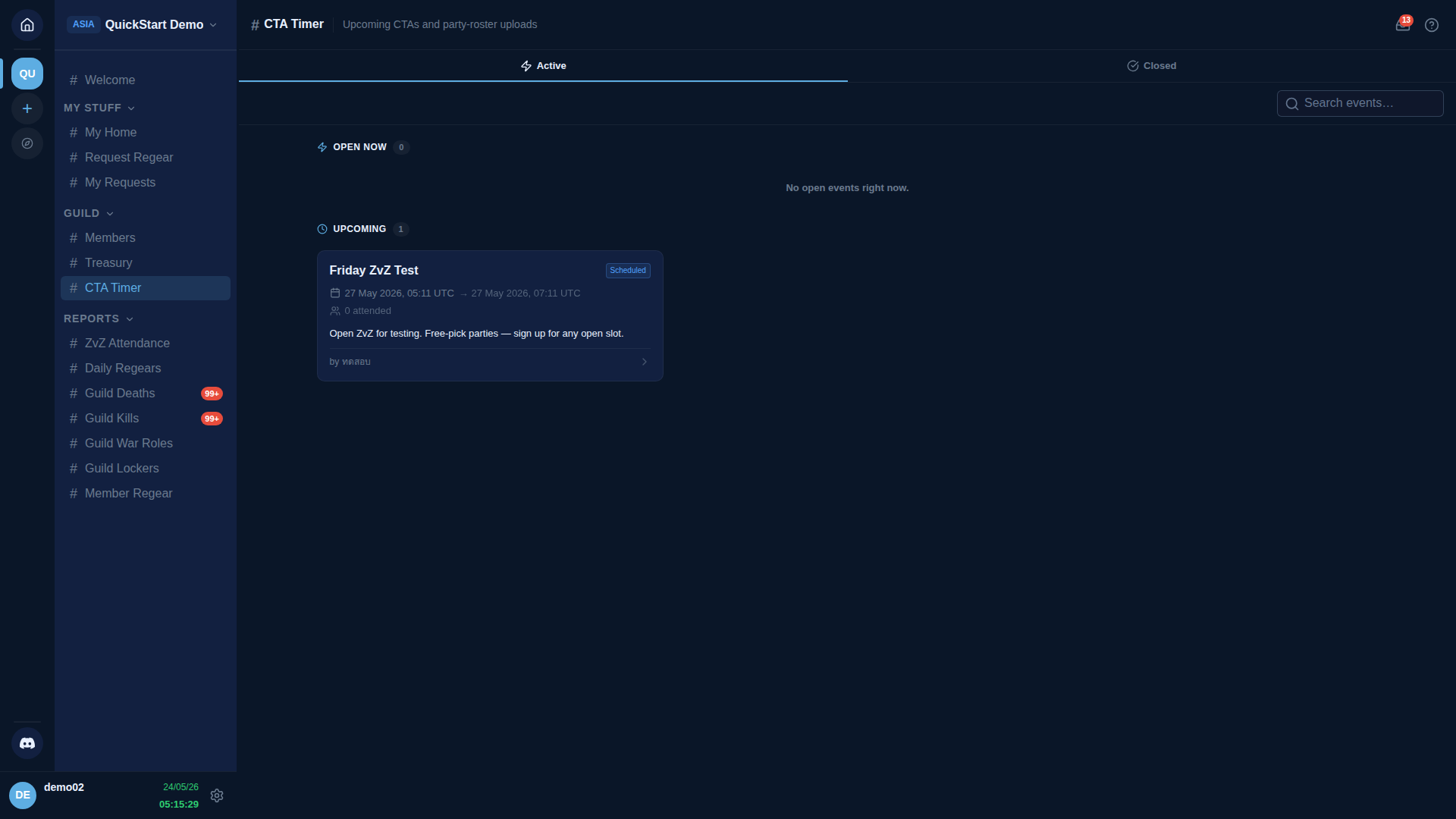
Two tabs: Active (with OPEN NOW + UPCOMING sub-sections) and Closed (recent past events). Each card shows the event name, start time in UTC, status pill, how many people are attended so far, and who scheduled it.
Click any card to open the event detail.
2. Open the event detail
The detail overlay opens on the Overview tab. The top of the panel shows your own attendance status for this event, the event metadata (start / end time, attendance count, creator + creation date), the description, and two action cards.
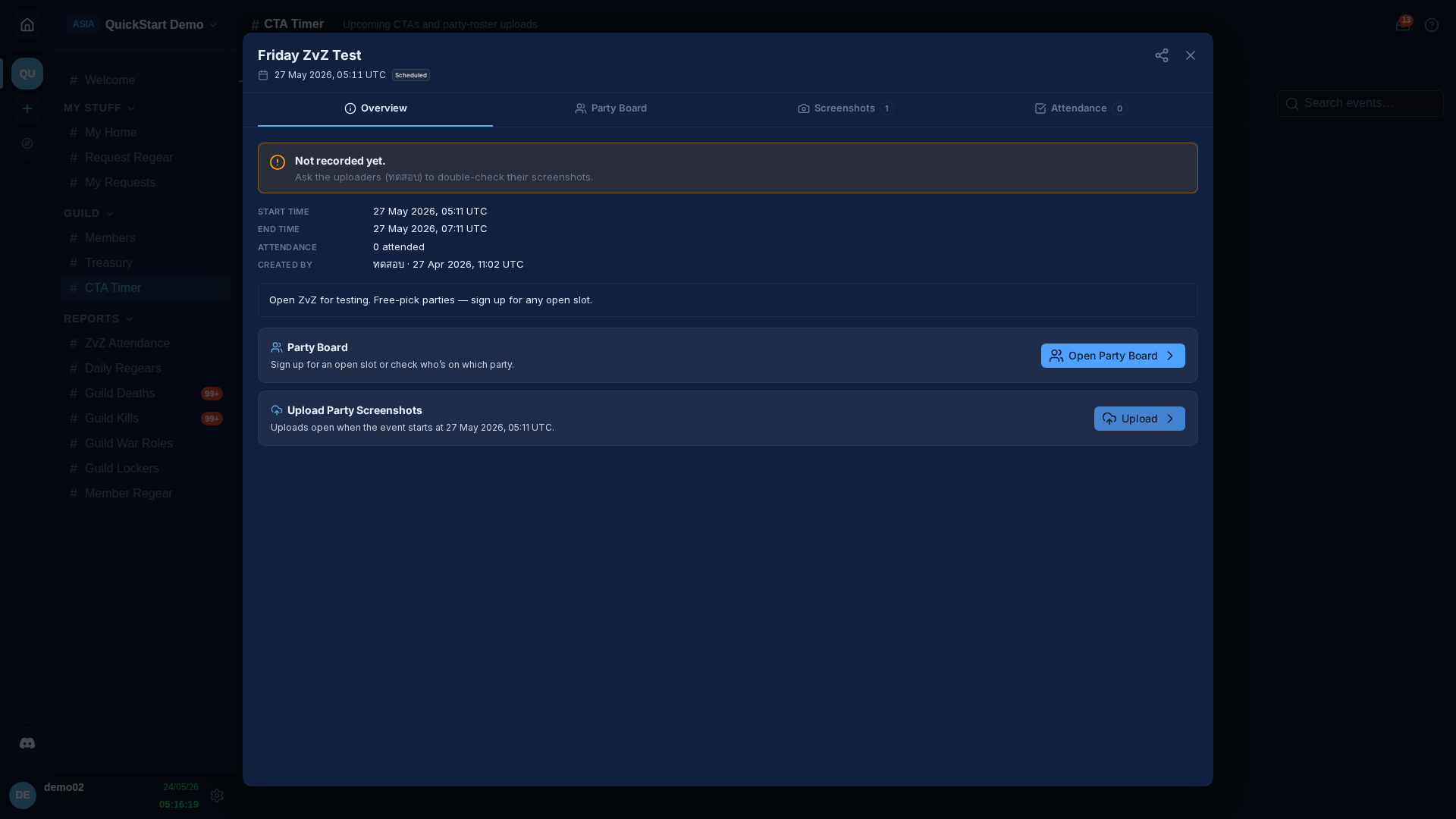
The two action cards on this tab:
- Party Board — where you sign up. Available as soon as the event is scheduled. Only appears when the event has parties configured.
- Upload Party Screenshots — for party leaders during the event. The button stays disabled until the event start time, with a line telling you when it opens.
Click Open Party Board to jump to the slot picker.
3. Party Board — pick a party
The Party Board opens in grid view — one card per party, each with a progress bar showing how many slots are filled.
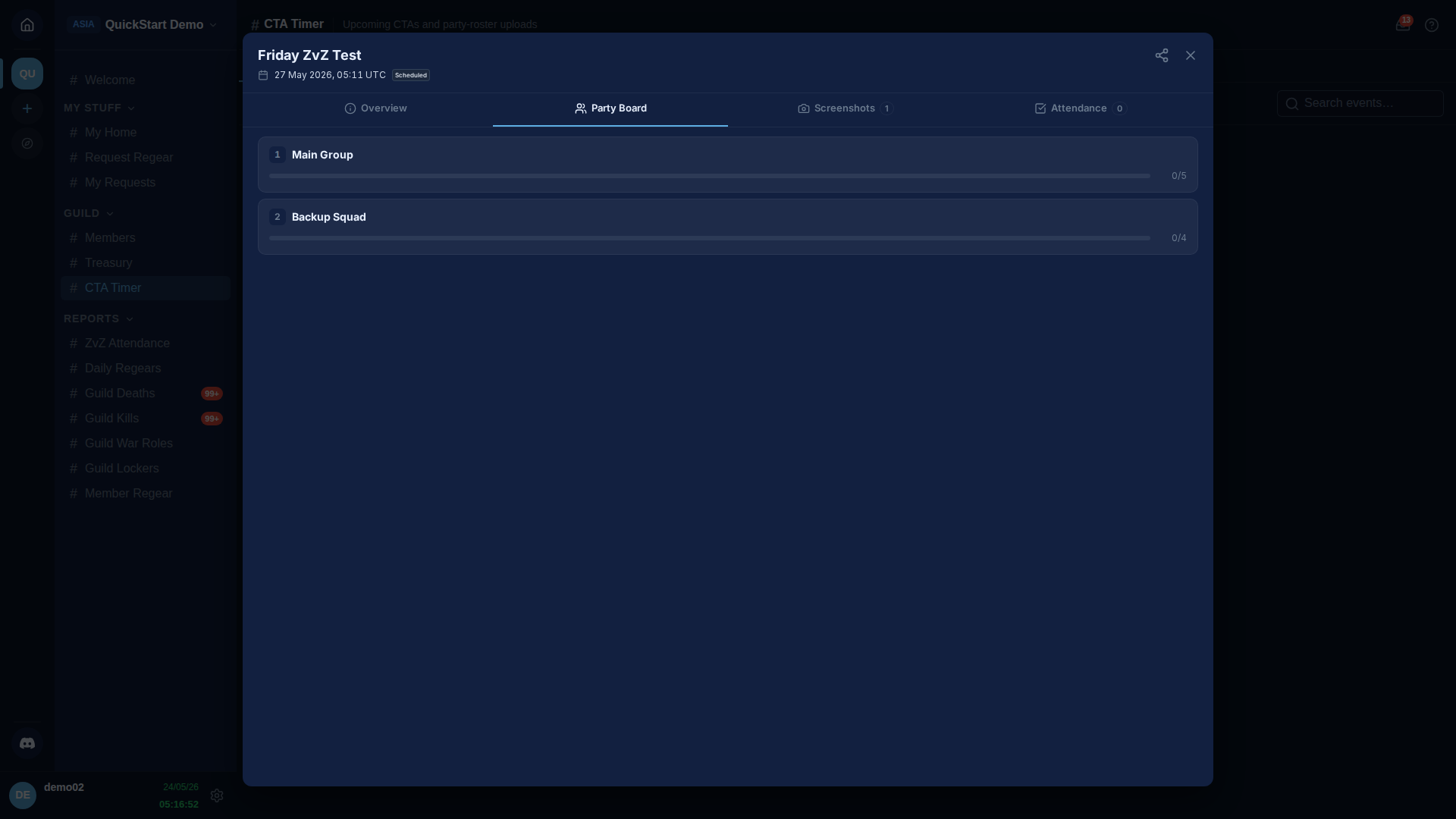
Some parties are locked down by the shot-caller, in which case a small lock badge appears next to the party name:
- Strict (lock icon) — every slot in this party requires the matching war role to sign up.
- Per-slot (lock icon) — only some slots are locked; others are open to anyone.
No badge means free-pick — anyone can claim any slot regardless of war role. The example above is two free-pick parties.
If you're already signed up in a party, that card gets a blue outline + a You're in this party chip at the bottom, so you can spot your slot at a glance.
Click a card to drill into its slot list.
4. Pick a slot
The drill view is a flat list of every slot in the party. The header has a Back arrow plus quick-switch pills for the other parties on the event, so you can hop between them without leaving the drill view.
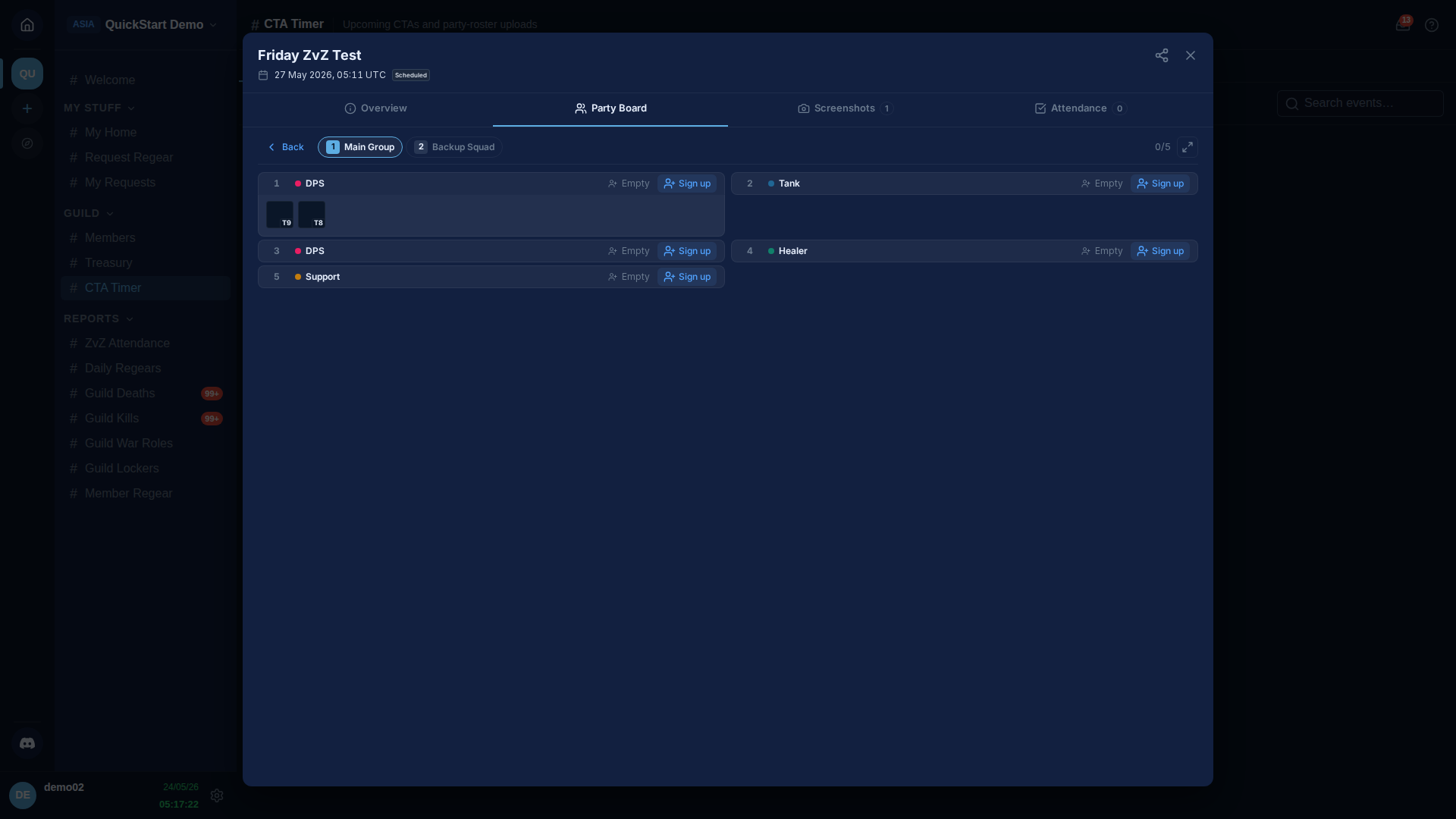
Each slot row shows the slot number, war role chip, optional sub-role note, and either the signed-up player or an Empty placeholder. The action button is Sign up when the slot is open and you're allowed to claim it.
If the shot-caller picked specific equipment for the slot, an equipment strip appears underneath with each piece + its tier badge. The strip is informational — staff can see exactly what gear they intended, but no one is forced to bring those exact items.
Strict-mode slots
If the party (or just this one slot) is locked to a war role you don't have, the Sign up button stays disabled with a tooltip:
This slot needs your war role — you don't have it.
Ask a recruiter or manager to assign you the war role first (Settings → War Roles).
Click Sign up on the slot you want.
5. After you sign up
Your character name appears on the slot, the action button flips to Cancel (you can self-cancel any time before the event starts), and the slot counter at the top of the drill view bumps up.
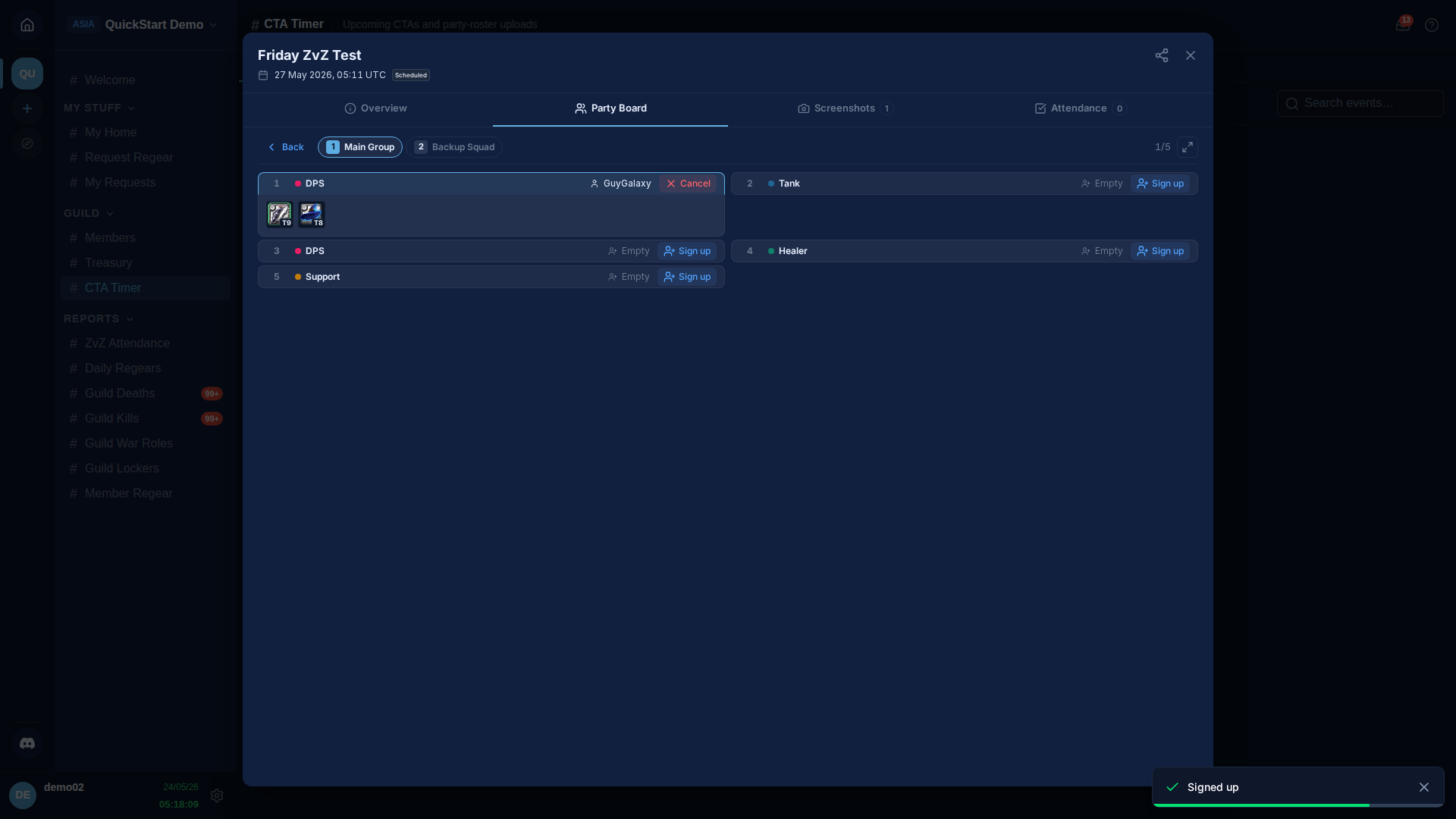
You can only hold one slot per event. If you click Sign up on a different slot (in either party of the event), AO Master moves you to the new slot in a single step — no need to cancel first.
If you go back to the party grid view, the Main Group card now has a blue outline + a You're in this party chip so you can find it again later.
Cancelling your sign-up
Hit Cancel on your slot any time before the event start time. The slot frees up immediately and someone else can claim it.
Once the event start time passes, the Cancel button greys out — only a shot-caller or staff can remove you from a slot from that point on. If you can't make the event after it has started, ask a staff member in your guild's chat to remove you so the slot opens back up.
What happens at event start
When the event start time hits:
- The event flips from Upcoming to Open on
#CTA Timer. - Sign-up and cancel close for members. Staff can still rearrange slots.
- The Upload Party Screenshots action card on the Overview tab becomes available for party leaders — that's the next stage of the flow, covered in Run + track attendance.
Your sign-up by itself doesn't count as attendance. AO Master records you as attended only when a party leader uploads a screenshot of the in-game party roster that has your character name on it. Sign-up just reserves your slot in the planned comp; the roster screenshot is what counts you as present.
Cross-links
- Plan an event with CTA Maker — the scheduling side (staff).
- Run + track attendance — what happens during + after the event.
#CTA Timerchannel reference — short pointer entry.- Settings → War Roles — where the war roles in strict-mode slots come from.
- Settings → Guild Systems — toggle ZvZ System + Party Board.