
Settings → Lockers
A locker group is a named bucket (e.g. "H1", "Hall") that owns a fixed number of lockers. Locker groups model how your guild chest hall is physically laid out — when a packer fulfils a cut-off task, the Recipients tab sorts members by (group sort order, locker number) so the packer can walk the hall top-to-bottom and hit every locker in physical order.
Open the tab from the Settings modal under PEOPLE → Lockers.
Permissions
The tab requires Manage Lockers to open. Per-member assignment also requires the same permission; granting it grants both the locker-config side and the per-member assign side.
The group list
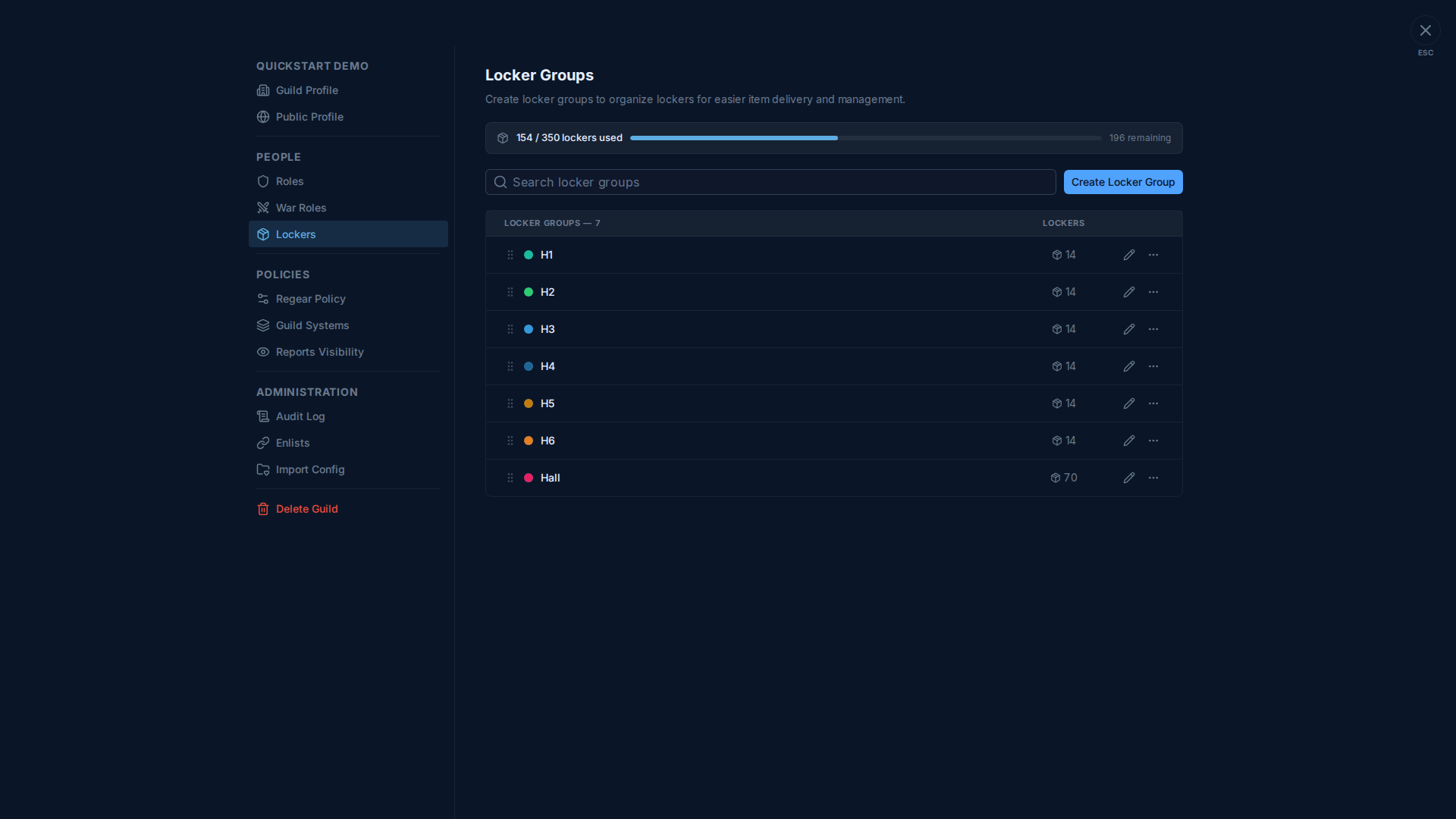
Each row shows:
- Drag handle — reorder. The order decides the walk order packers see on the Cut-off Task → Recipients tab when sort is set to Group > Locker.
- Colour dot + name — colour-codes the group in the Guild Lockers report.
- Locker count — how many slots the group holds. Edit via the pencil icon.
- 3-dot menu — duplicate, rename, delete.
The bar at the top shows your tier's locker quota (used / total · remaining). Hitting the cap blocks new group creates + locker-count increases until you upgrade the tier (see Subscription tier + billing) or delete an existing group.
Editing a group
Pencil icon → modal with:
- Name — short, used everywhere a locker shows up (
#Cut-off Tasksrecipient row, member's#My Home → Locker, Guild Lockers report). - Color — for the dot.
- Locker count — how many slots. Reducing the count is blocked when assigned members would have to be evicted; clear the assignments first on
#Guild Lockers.
Per-member assignment lives elsewhere
This tab only configures the groups + counts. To actually assign a specific locker to a specific member, use:
#Members → 🔒 Lockerper-member action on the row, OR#Guild Lockerspage for the bulk view + drag-to-reassign workflow.
See Lockers (members side) for the assignment workflow.
Why locker order matters
The (group, locker) sort on Cut-off Task Recipients is the packer's walking path. If your guild's hall is physically laid out H1 → H2 → H3 → H4 → H5 → H6 → Hall (as in the screenshot), keep that order in the group list and the packer walks the hall straight through. Reordering changes the walk path without touching any locker assignments.
Cross-links
- Lockers (members side) — per-member assignment + reassignment.
- Item mode — cut-off + locker — the consumer of locker assignments.
- #Guild Lockers report — guild-wide view of who has which locker.