
Discord Integration
The #Discord Integration channel is where you pair your Discord server to this AO Master guild, then configure how the two stay in sync. Unlike most settings, this lives on its own dedicated channel — #Discord Integration under the MANAGEMENT sidebar group — instead of inside the Settings modal.
Most owners visit it once during onboarding (to pair) and then a few times more as the guild grows — to enable the Ally pipeline, hook up Regear delivery pings, or refresh role mappings after restructuring.
For the deep walkthrough of inviting the bot and running the /guild pair wizard, see Discord — Install + pair.
Permissions
The channel requires Manage Integrations to open. Grant it carefully — this permission is the Discord-side admin lever. It gates pairing, unpairing, role + war-role mapping, the Enlist / Ally / Regear pipelines, and pinned-message rebuilds.
Before pairing — the three-step onboarding card
When the bot isn't paired to your Discord server yet, the page shows a three-step onboarding card:
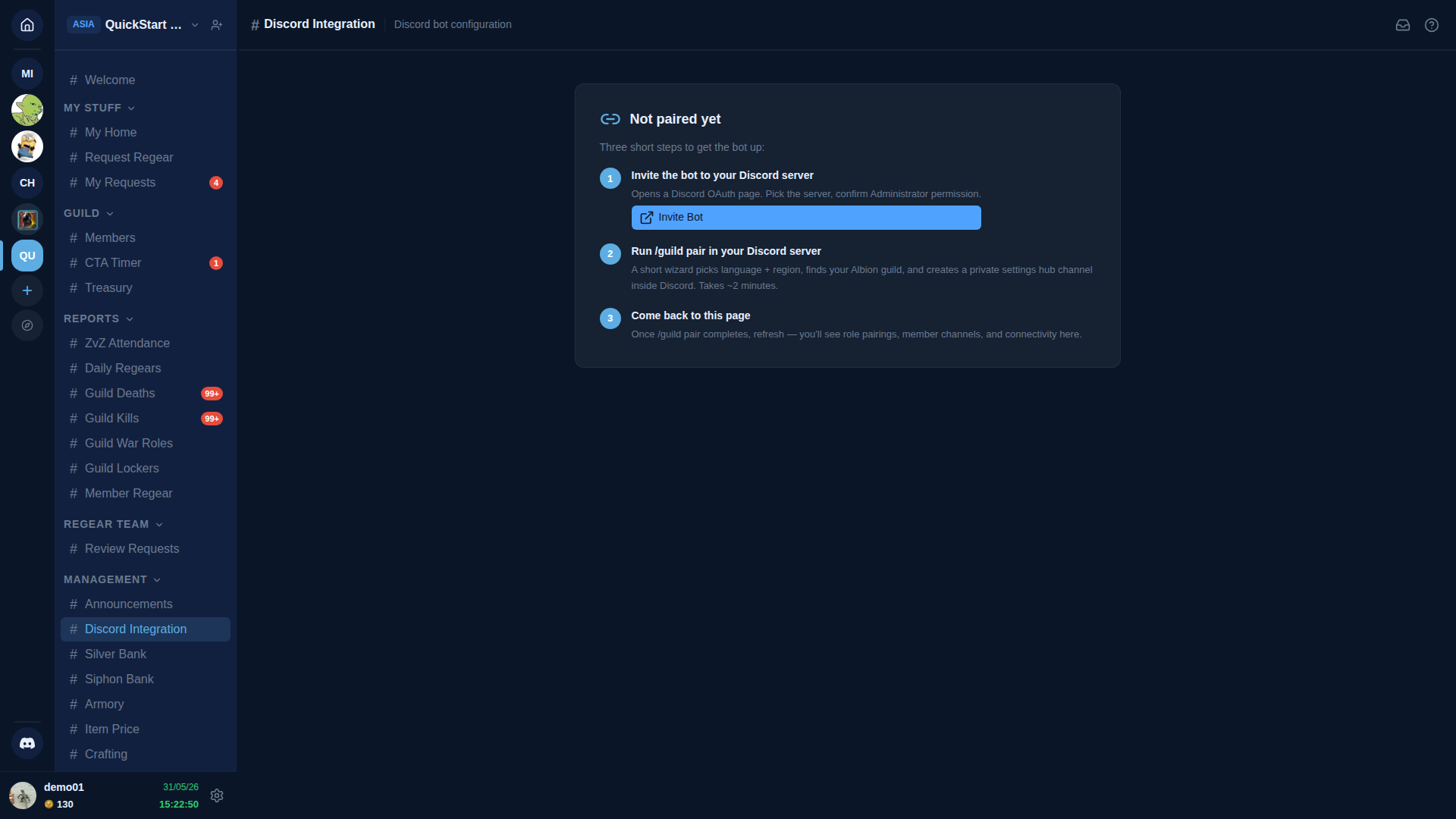
- Invite the bot to your Discord server — opens a Discord OAuth page. Pick the server, confirm the Administrator permission grant. (The bot needs Administrator because it manages channels, roles, permissions, and webhooks on your behalf.)
- Run
/guild pairin your Discord server — a short wizard picks language + region, finds your Albion guild, and creates a private#⚙️-guild-settingschannel under a new🛡 AO Mastercategory. Takes ~2 minutes. - Come back to this page — once the wizard completes, refresh and the page expands into the full five-tab view.
The step-by-step walkthrough with screenshots of every wizard prompt is on Discord — Install + pair.
If the bot was removed from your Discord server
The page shows a Bot was removed from your Discord server card with a single Re-invite Bot button. Clicking it sends the bot back through the OAuth flow. Once it rejoins, the page returns to the healthy five-tab view automatically. No /guild pair re-run is needed unless your Discord-side data was wiped.
After pairing — the five tabs
Once the bot is paired, the page expands into five tabs across the top.
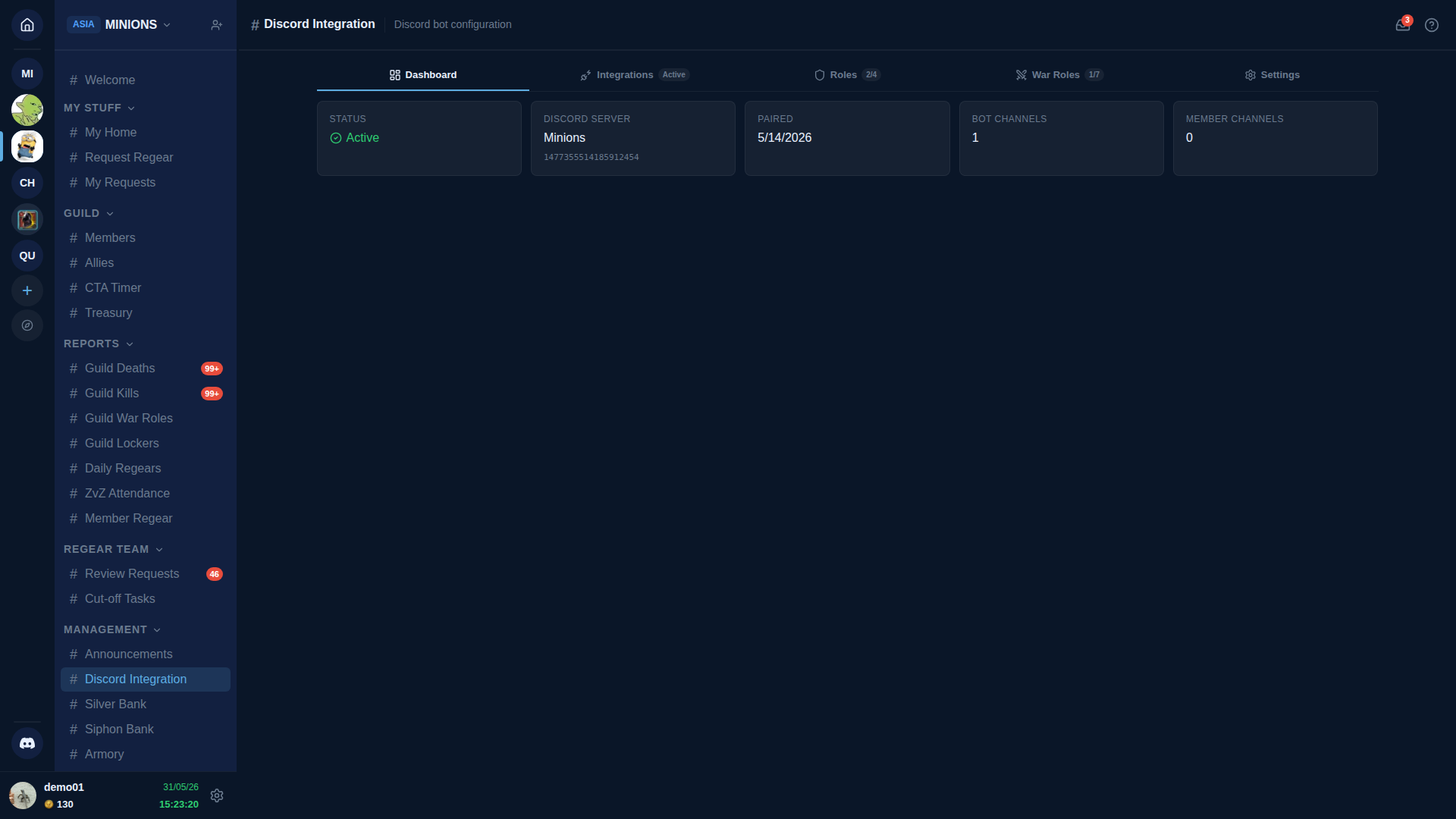
| Tab | What's on it |
|---|---|
| Dashboard | Five status cards — connection state, Discord server name, paired date, bot channel count, member channel count. Read-only. |
| Integrations | The three Discord-side pipelines — Enlist, Ally, Regear. See the next section. |
| Roles | Map each AO Master role to a Discord role + the Discord Role Sync sub-tab. |
| War Roles | Map each war role to a Discord role + the War Role Sync sub-tab. |
| Settings | Danger zone — Unpair the integration. |
The tab order matches the typical setup sequence: confirm the connection (Dashboard) → wire up the pipelines (Integrations) → map roles (Roles + War Roles) → leave Settings alone unless you're tearing down.
Integrations tab — Enlist, Ally, Regear
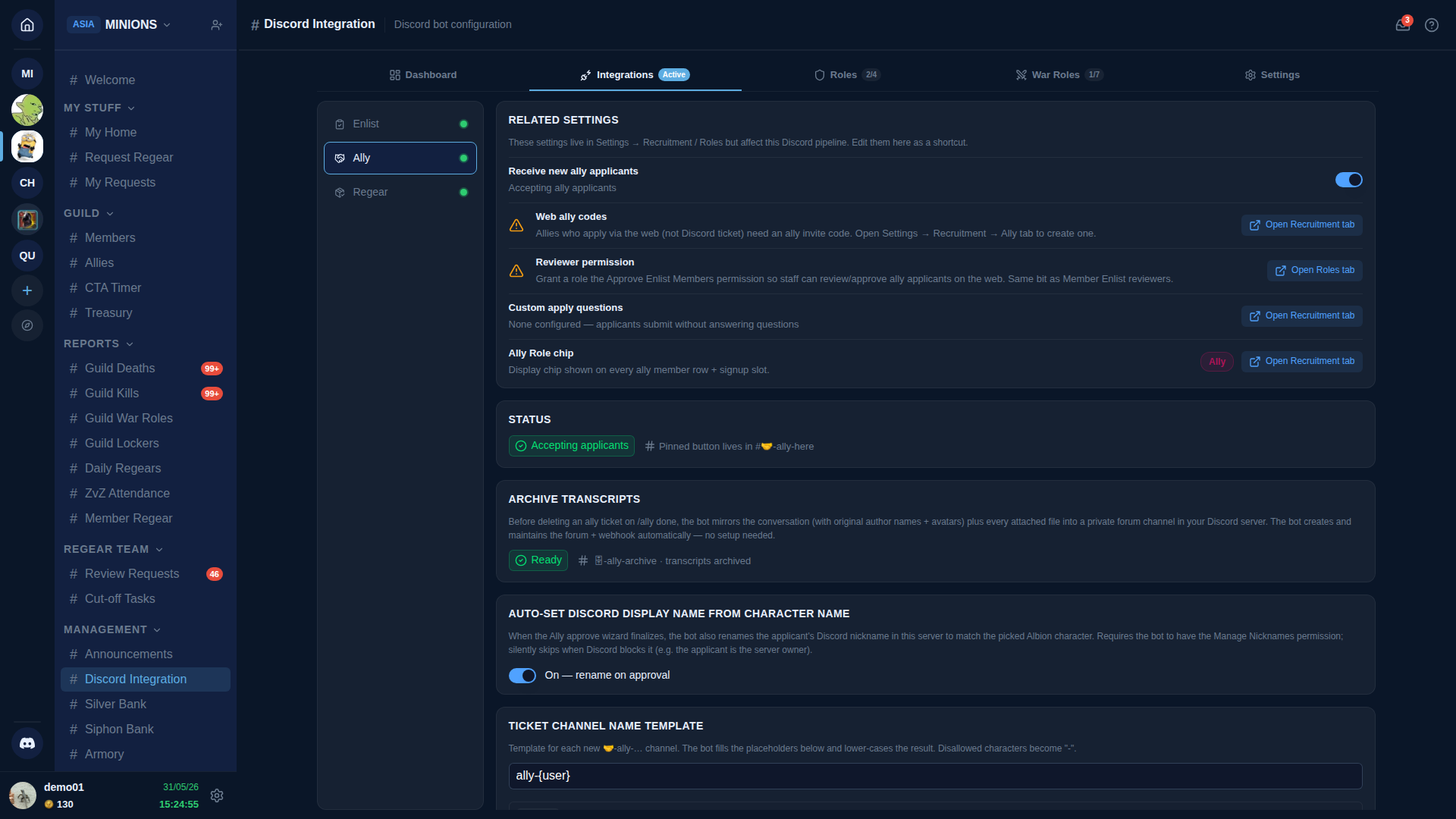
The Integrations tab uses a vertical sub-nav on the left with one panel per pipeline on the right. Each sub-nav row carries a small green/red dot showing whether the pipeline is configured + active.
Enlist sub-page
Configures the Enlist pipeline — the [Enlist] button pinned in #📋-apply-here (your channel name may differ). Members click it, the bot opens a private 🎯-enlist-… ticket channel, recruiters review the conversation, and on approval the bot syncs the role + (optionally) renames the applicant.
Top of the panel is a Related settings card with one-click shortcuts to settings that live elsewhere but affect this pipeline:
- Receive new applicants — pauses or resumes intake.
- Web join codes — opens the Recruitment tab in a side modal so you can generate codes for non-Discord applicants.
- Recruiter permission — opens the Roles tab so you can grant the Approve Enlist Members permission to a role.
- Custom apply questions — opens the Recruitment tab to edit the question list shown to every applicant.
Below the Related settings card, the Discord-only settings:
- Status — accepting or paused, plus the channel the pinned button lives in.
- Archive transcripts — before deleting a ticket on Approve or Reject, the bot mirrors every message (with original author names + avatars) and every attachment into a private forum channel. The forum + the webhook the bot uses to post are created automatically the first time you approve someone.
- Auto-set Discord display name from character name — when a recruiter approves an applicant, the bot also renames their Discord nickname to match the picked Albion character. Silently skips when Discord blocks it (for example when the applicant is the server owner).
- Ticket channel name template — pattern for each new
🎯-enlist-…channel name. Placeholders:{user}(Discord username),{number}(sequential counter — and a Reset counter button beside it). - Recruiter Discord roles — Discord roles that see and reply inside every ticket. Also the gate for
/enlist reviewand/enlist reject. - Map Enlist channel — point the pinned
[Enlist]button at an existing Discord channel. - Map Ticket category — point new tickets at an existing Discord category.
- Enlist button label + Pinned message body + Welcome message inside each ticket — text you control with full Discord-markdown support.
- Actions — three rows: Refresh pinned message (re-render the pinned button), Rebuild structure (auto-reject every pending applicant, wipe the channel + category, recreate them fresh — keeps your custom roles + messages), Disable Enlist (clear the entire config and free the channels).
The full applicant-to-approval flow is described on Discord — Enlist flow.
Ally sub-page
Configures the Ally pipeline — the Discord-side analogue of Enlist for applicants from partner guilds. The structure mirrors Enlist closely, with two pieces that are unique to allies.
The Related settings card has the same shape — receive toggle, web ally codes, reviewer permission, custom apply questions — plus one Ally-only row:
- Ally Role chip — the chip shown on every ally member row and signup slot (live colour preview).
The Discord-only settings include everything Enlist has — Status, Archive transcripts, Auto-set Discord display name, Ticket channel name template (the 🤝-ally-… family), Reviewer Discord roles, Map Ally channel, Map Ticket category, Ally button label, Pinned message body, Welcome message — plus two Ally-only cards:
- Member role granted on approval — Discord role added to every approved ally after the nickname rename. Defaults to AO Ally (auto-created the first time you enable the pipeline, coloured to match the Ally Role chip). Pick a different role if you already have one, or leave blank to skip the role grant entirely.
- Ally Role Sync — three-mode picker for what happens when an ally's character defects (leaves every partner guild):
- 🟢 Off — no auto-purge — bot never strips the Discord ally role. The roster status still flips to Left alliance; only the Discord role stays. Useful when allies are long-term guests and you want manual control.
- 🟡 Manual review — roster status flips + the row joins a Stale Ally Roles review list. You pick a subset to strip; the Discord role stays in place until you confirm.
- 🔴 Strict — immediate purge — defection check flips the roster AND immediately strips the Discord ally role + DMs the former ally. Default. Keeps roster + Discord roles tightly coupled with no admin work.
- Partner Discord roles — map each partner guild in your alliance to a Discord role. Approved allies get this role IN ADDITION to the universal AO Ally role so their source partner is visible at a glance. Names that match an existing Discord role get auto-linked.
The Actions card carries the same three rows as Enlist (Refresh pinned message, Rebuild structure, Disable Ally), scoped to the Ally pipeline only.
The full ally-to-approval flow is described on Discord — Ally flow.
Regear sub-page
Configures the Regear delivery notification — a Discord ping that fires when staff marks a Cut-off Task complete.
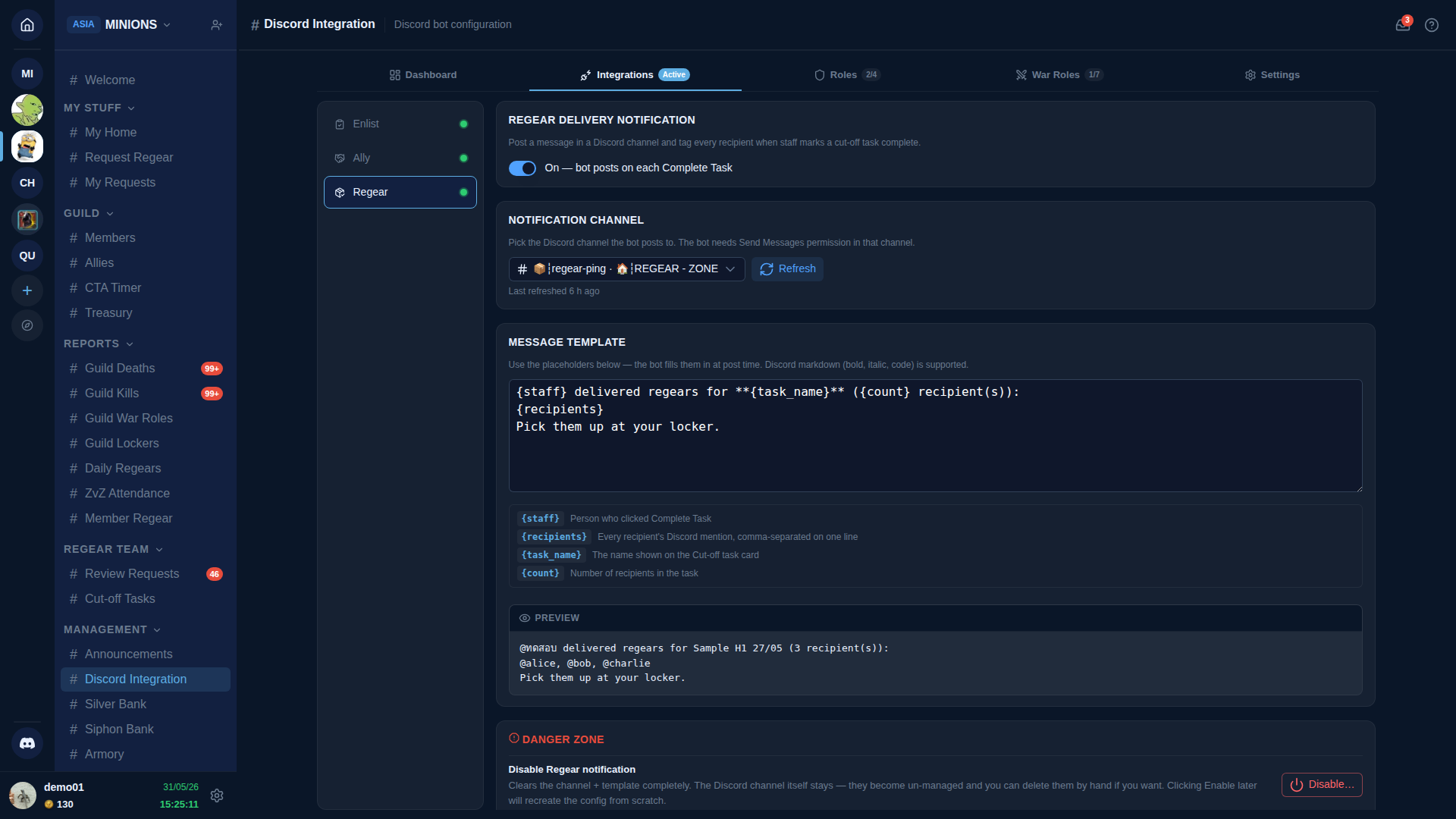
Regear delivery notification — top toggle. On or off; off keeps the channel + template you've configured for next time.
Notification channel — pick the Discord channel the bot posts to. The bot needs Send Messages in that channel.
Message template — write the post body using four placeholders the bot fills in at send time:
{staff}— Discord mention of the person who clicked Complete Task.{recipients}— every recipient's Discord mention, comma-separated.{task_name}— the name on the Cut-off task card.{count}— number of recipients in the task.
A Preview block at the bottom of the card renders the template with sample values so you can see formatting before saving.
Danger zone — Disable Regear notification — clears the channel + template. The Discord channel itself stays. Re-enable any time.
Trigger surface for the notification: the Complete Task button on #Cut-off Tasks. See Item mode — cut-off + locker for that workflow.
Roles tab
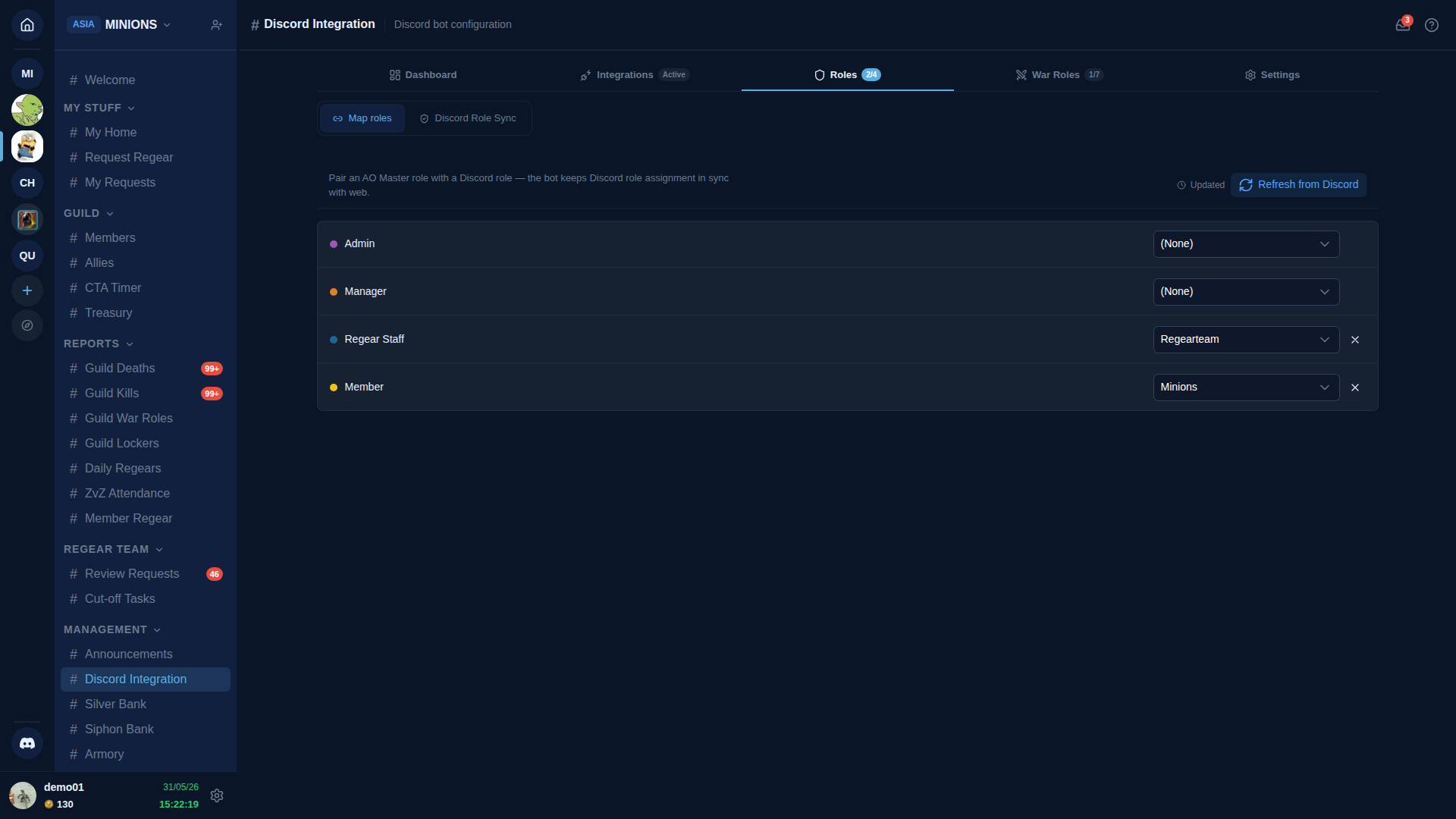
Pair each AO Master role with a Discord role. When a member's role changes on either side, the bot syncs it to the other side.
Two sub-tabs at the top of the panel:
Map roles — the row-per-role mapping editor shown above. Each row has the AO Master role on the left, a Discord-role dropdown on the right, and a small ✕ to unlink. Edits are staged locally — an unsaved bar appears at the bottom of the page when any row has changed, with Save and Discard buttons. Switching tabs preserves your draft; closing the page warns you first.
The Refresh from Discord button forces the bot to re-fetch the live Discord role list (useful right after you create or rename a Discord role and want to map it without waiting for the bot's hourly refresh).
Discord Role Sync — picks how the bot reacts when a member loses their web role or leaves the guild. Same three modes as Ally Role Sync: Off — no auto-purge / Manual review (with a Run Manual Purge button that opens the review list) / Strict — immediate purge (default).
Below the mode picker, a Sync activity log lists every Discord role change the bot has made — grants and revokes triggered by web changes, reverts of manual Discord-side edits, scheduled re-checks, and Run Manual Purge clicks. Web-side role changes live in the main Audit Log instead.
War Roles tab
Same layout as Roles, but for war roles. The Map war roles sub-tab pairs each war role with a Discord role; the War Role Sync sub-tab carries an independent three-mode picker scoped to war-role assignments only. They're separate columns so you can be strict about regular roles and permissive about war roles, or vice versa.
Settings tab — Danger zone
A single card with one button.
- Unpair Discord integration — removes the bot's
🛡 AO Mastercategory, member channels, and role mappings. Reversible by running/guild pairagain.
Your AO Master guild data (members, roles, banks, regear history) stays intact across an unpair. Only the live link to the Discord server is broken.
Cross-links
- Discord — Install + pair — full deep-dive on inviting the bot + running the wizard.
- Discord — Channels overview — the
🛡 AO Mastercategory, the#⚙️-guild-settingshub, the🎯 Enlistand🤝 Allycategories. - Discord — Enlist flow — the applicant-to-approval flow on the Discord side.
- Discord — Ally flow — the ally application + approval flow on the Discord side.
- Settings → Recruitment — Member + Ally cross-surface settings on the Recruitment tab (apply questions, web join/ally codes, Ally Role chip).
- Item mode — cut-off + locker — the Cut-off Tasks workflow that triggers the Regear delivery notification.