
Link previews
When someone pastes an AO Master link into Discord, Telegram, Twitter, Slack, or any other chat app, the platform shows a link preview card — a thumbnail with a title and a short description. Better previews make recruiting links land harder; a bare URL gets less attention than a rich card with your guild's banner.
This page covers what AO Master sends to each chat app, and how staff customize the preview for the two recruitment pipelines.
What ships out of the box
Four URL shapes carry distinct link previews:
| Link shape | Preview shows |
|---|---|
https://ao-master.com/ (landing) | AO Master brand mark + tagline. No per-guild content. |
https://ao-master.com/channels/<guild>/... (any of your guild's channel pages) | Your guild's icon, name, and description — pulled from your Public Profile. |
https://ao-master.com/enlist/<code> (Member enlist link) | Your guild's name + description, with a Link preview banner if uploaded. |
https://ao-master.com/ally/<code> (Ally invite link) | Same as above, with a separate banner you upload on the Ally tab. |
The first three work automatically — anyone who shares your link gets the right preview. The fourth (recruitment banners) is where staff customization happens.
Upload a recruitment banner
Staff with Manage Integrations (or the guild owner) can upload a separate banner per pipeline:
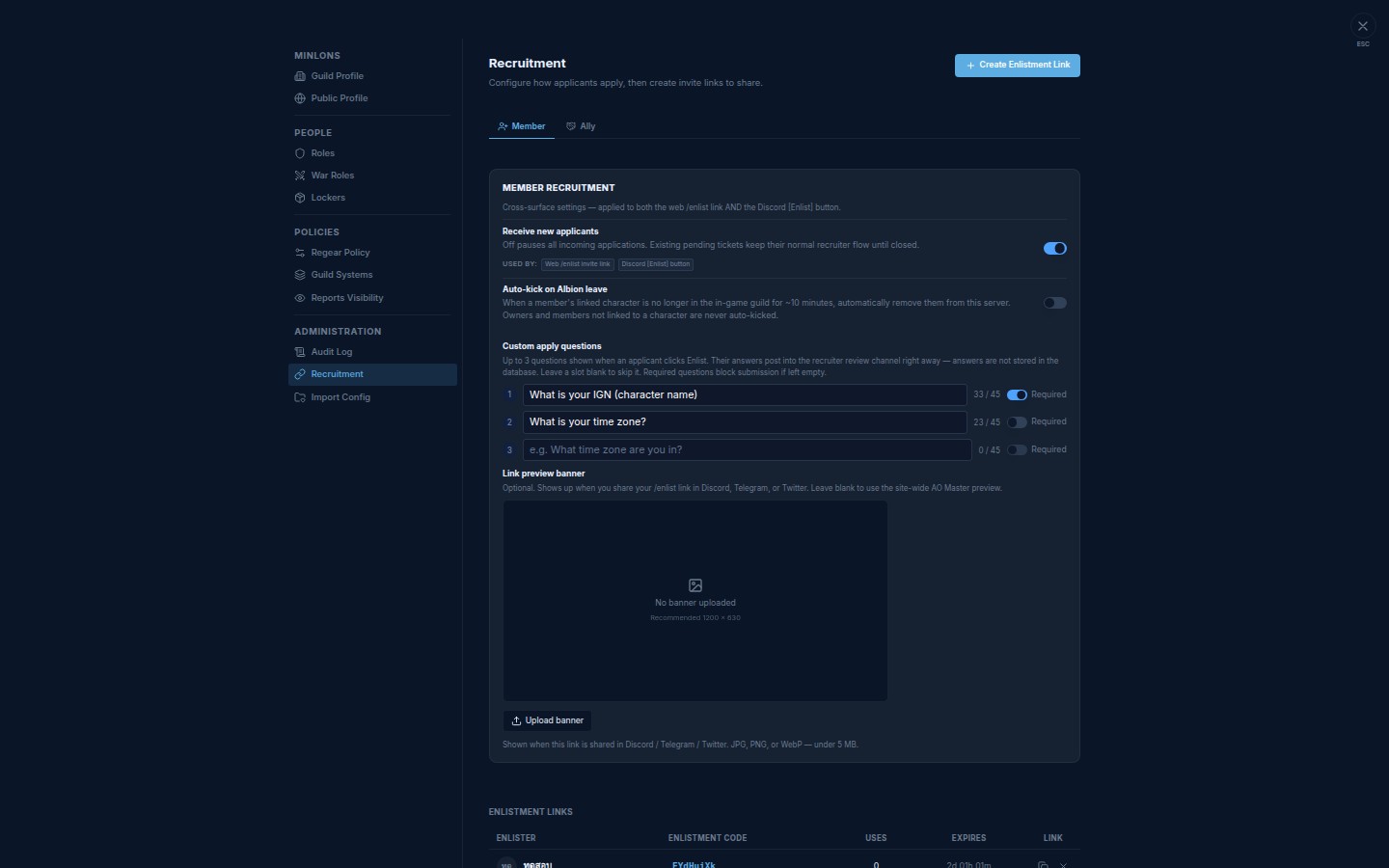
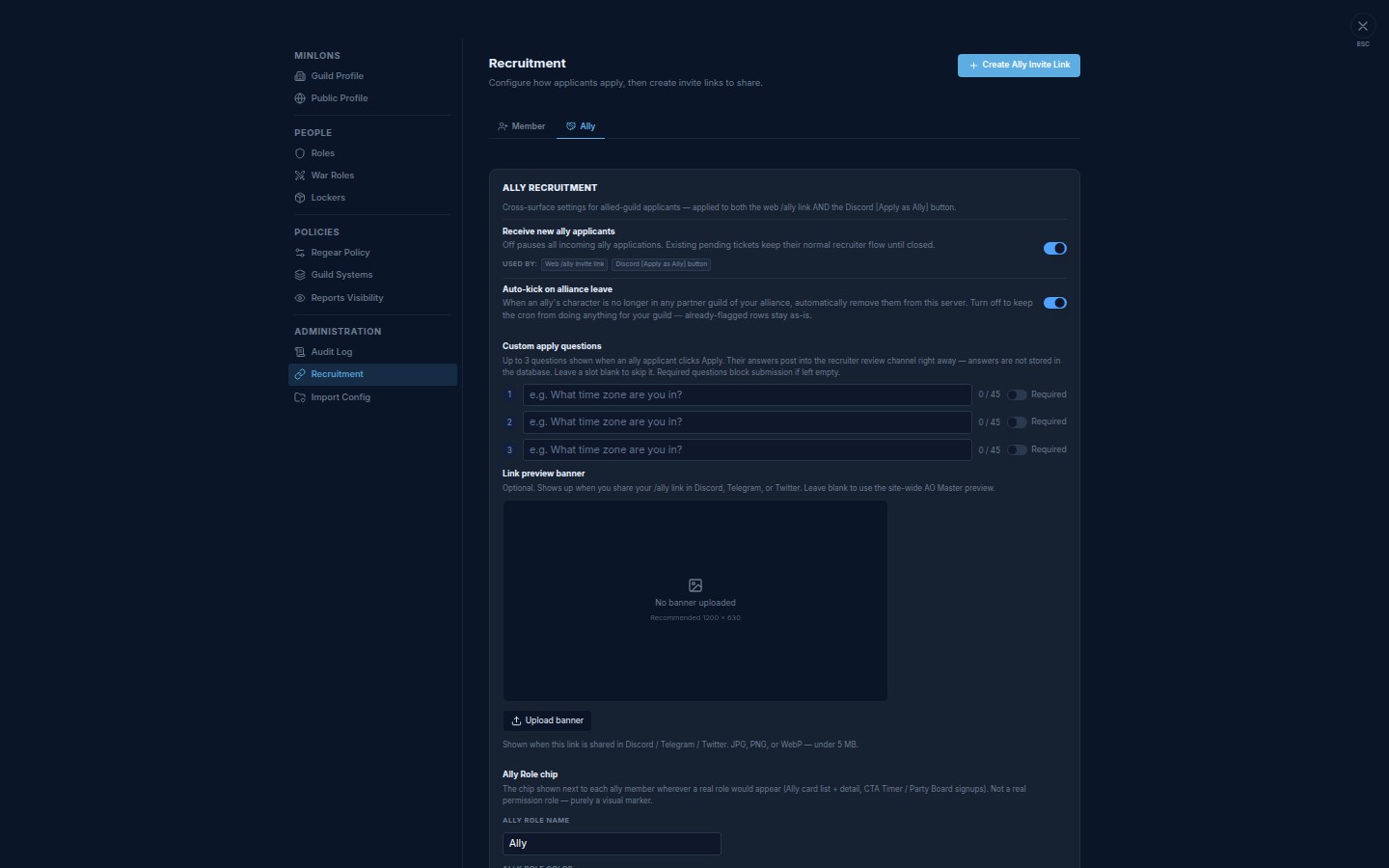
- Open Settings → Recruitment.
- Pick the tab that matches the link you're sharing — Member (for
/enlist) or Ally (for/ally). - Scroll to the Link preview banner card.
- Click Upload banner.
- Pick a JPG, PNG, or WebP under 5 MB. Recommended size 1200 × 630 (the standard share-card aspect ratio).
- The new banner shows up in the preview immediately — your
/enlist(or/ally) link in Discord refreshes within a minute.
Member tab
Ally tab
Replacing or removing a banner
The same widget handles all three cases:
- Replace — click Upload banner again with a new file. The old file is overwritten in storage and the share preview refreshes.
- Remove — click Remove under the preview. The card falls back to the site-wide AO Master preview for that link.
- Keep blank — never upload. The share card shows your guild's icon + name + description, falling back to the AO Master brand mark if you don't have an icon set.
Why my Discord preview still shows the old image
Discord caches link previews for up to 24 hours. AO Master appends a version stamp to your banner URL every time you upload — that forces Discord to refetch immediately the next time someone shares the link. If you uploaded a few seconds ago and your existing pinned link still looks stale, edit the message (any small change) or re-post the link; the new preview catches up.
Where else this matters
The banner you upload here also doubles as a richer card on:
- The public Member / Ally apply page — same banner shows above the apply form.
- The Guild Profile page (
/g/<your-slug>) — uses your Public Profile banner instead. See Public Profile for that one.
Cross-links
- Member enlist flow — how the
/enlistlink actually works once a recruit clicks it. - Alliance / Ally flow — the equivalent for
/ally. - Members — Leave, kick, and revive — the Auto-kick on Albion leave toggle lives next to the Member banner widget.